
(Nov 2023) – SAS 9.4 Administration – How to Address SAS Backup Failure Caused by Failing Content Server
There may be many different reasons for SAS weekly scheduled backup failure (by default, every Sunday at 1 AM). One of the causes could be an inaccessible SAS Content Server. In the following steps we will investigate and troubleshoot the root cause.
Step 1: Confirm Weekly Backup Failure
This step could be initially viewed from SAS Management Console
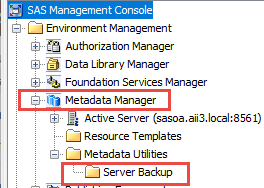
Which will list all the daily default metadata backups and weekly backups completed, the missing backups (ea. Sunday) would not be in the list.
Another method to confirm that weekly backups are not occurring is to run a CMD line SAS backup command by navigating to /<SASHome/>/SASPlatformObjectFramework/9.4/tools/admin via CMD shell (run as administrator) and run the following command:
./sas-list-backups -host sasoa.aii3.local -user sasadm@saspw -password xxxxx -port 8443 -protocol httpsWhich produces a long list on the command shell and also in the command namesake json file at
/<SASHome/>/SASPlatformObjectFramework/9.4/tools/admin/sas-list-backups.json
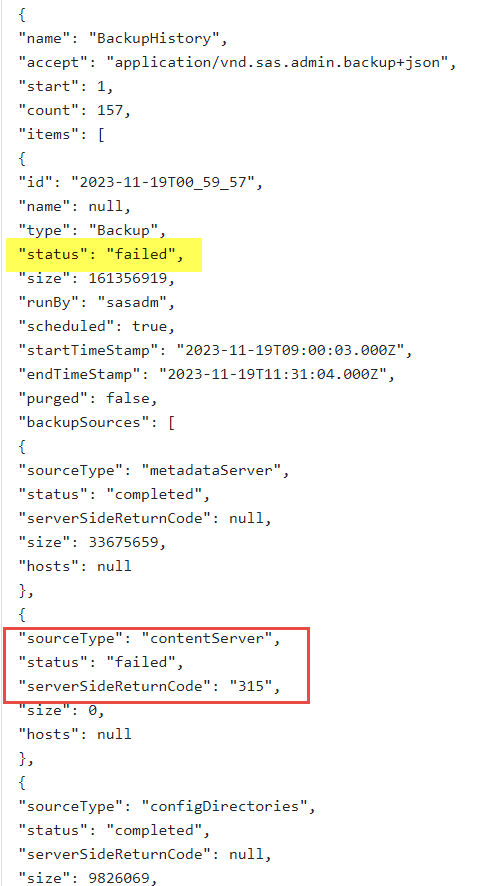
The json file lists the various components that were backed up and the backup status and which actual component failed:
2nd Step: Validate SAS Content Server
Navigate to SAS Management Console and validate SAS Content Server as shown below, in our case it ended with a severe error
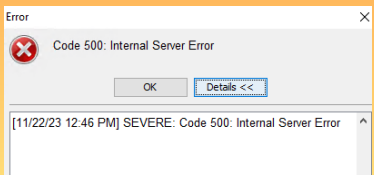
Since the error was Internal Server two logs were reviewed
- SASContentServer9.4.log at
/<Config/>/Lev1/Web/Logs/SASServer1_1 - Server.log at
/<Config/>/Lev1/Web/WebAppServer/SASServer1_1/logs
Error shown in SAS Content Server log
ERROR org.apache.catalina.core.ContainerBase.[Catalina].[localhost].[/SASContentServer].[RepositoryStartup] - Allocate exception for servlet [RepositoryStartup]
Corresponding with the error in server.log
2023-10-25 01:42:28,015 ERROR (localhost-startStop-4) [org.apache.catalina.core.ContainerBase.[Catalina].[localhost].[/SASContentServer]/] Servlet [RepositoryStartup] in web application [/SASContentServer] threw load() exception
com.gemstone.gemfire.distributed.LockServiceDestroyedException: [DLockService@1ea4d53a named com.sas.contentserver.lock.LockService destroyed=true grantorId=null grantor=null] has been destroyed
Root Cause
Both errors show issues with the operation of the SASServer1_1 JVM.
Solution
A typical and fast resolution is to perform a SAS Middletier deep clean of the SAS middle tier logs by
- Stop SAS services
- Clean up SAS logs (see appendix A for SAS deep clean instructions)
- Start SAS Services
- Validate
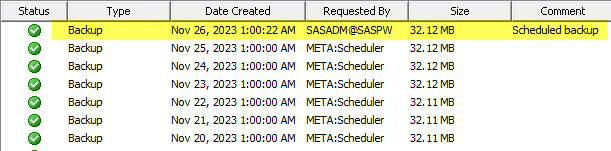
Once SAS started the SAS Content Server validated via SMC and Sunday weekly backup was created.
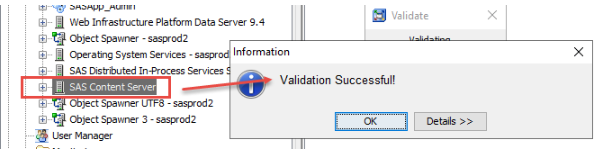
SMC
APPENDIX A: SAS Middle Tier Deep Clean
Stop SAS Services or servers (depending on OS)
NOTE: Please be sure to delete the CONTENTS of the following directories, and not the directories themselves.
NOTE: The X and Y in "SASServerX_Y" represent the different servers you may have (i.e. "SASServer1_1").
Delete (or move/archive) the contents of the following directories:
/<SAS_CONFIG/>/Lev#/Web/WebAppServer/SASServerX_Y/logs/*(don't remove*.epochfile,*events.txt,*.cfgin this location, rename*.lckfile)/<SAS_CONFIG/>/Lev#/Web/WebAppServer/SASServerX_Y/work/*(these temporary files do not need to be backed up)/<SAS_CONFIG/>/Lev#/Web/WebAppServer/SASServerX_Y/temp/*(these temporary files do not need to be backed up)/<SAS_CONFIG/>/Lev#/Web/WebServer/logs/*/<SAS_CONFIG/>/Lev#/Web/gemfire/instances/ins_41415/*.log/<SAS_CONFIG/>/Lev#/Web/gemfire/instances/ins_41415/*.dat/<SAS_CONFIG/>/Lev#/Web/activemq/data/*/<SAS_CONFIG/>/Lev#/Web/Logs/SASServerX_Y/*- You may take advantage of this outage and also cleanup SAS Metadata, ObjectSpawner, Stored process server logs as warranted.
- Start SAS Servers
- Validate.